SharePoint migration
SharePoint 2019 to SharePoint Online Migration: A Checklist for SMEs
Is your company still running SharePoint 2019 on-premises? Support is ending, and migrating to SharePoint Online is becoming increasingly urgent. This checklist gives you a realistic, step-by-step overview: what you need to know beforehand, which choices you will need to make, and where most SMEs stumble.
In short
- Extended support for SharePoint Server 2019 ends on October 14, 2026. Waiting increases the risk of security vulnerabilities and compatibility issues.
- A migration to SharePoint Online is more than copying files: permissions, metadata and workflows come along too.
- Plan at least one cleanup round beforehand: not everything that is online today deserves a place in the new environment.
- Test critical components (search, customisations, integrations) separately before going live.
- The timeline depends mainly on data volume and customisation, not on the number of users.
- A phased migration per site or department is less risky than a big bang.
Why migrate from SharePoint 2019 to SharePoint Online now?
The longer you wait, the greater the risk of unexpected costs and downtime. Microsoft ended mainstream support for SharePoint Server 2019 in January 2024; extended support ends on October 14, 2026. After that there are no more security patches, and support for issues disappears. According to Microsoft's lifecycle policy, that is a fixed timeline, not a vague threat.
For an SME this is not an abstract risk. If your IT partner can no longer properly maintain the environment, you end up paying more for emergency fixes than for a planned migration.
How does a migration work in practice?
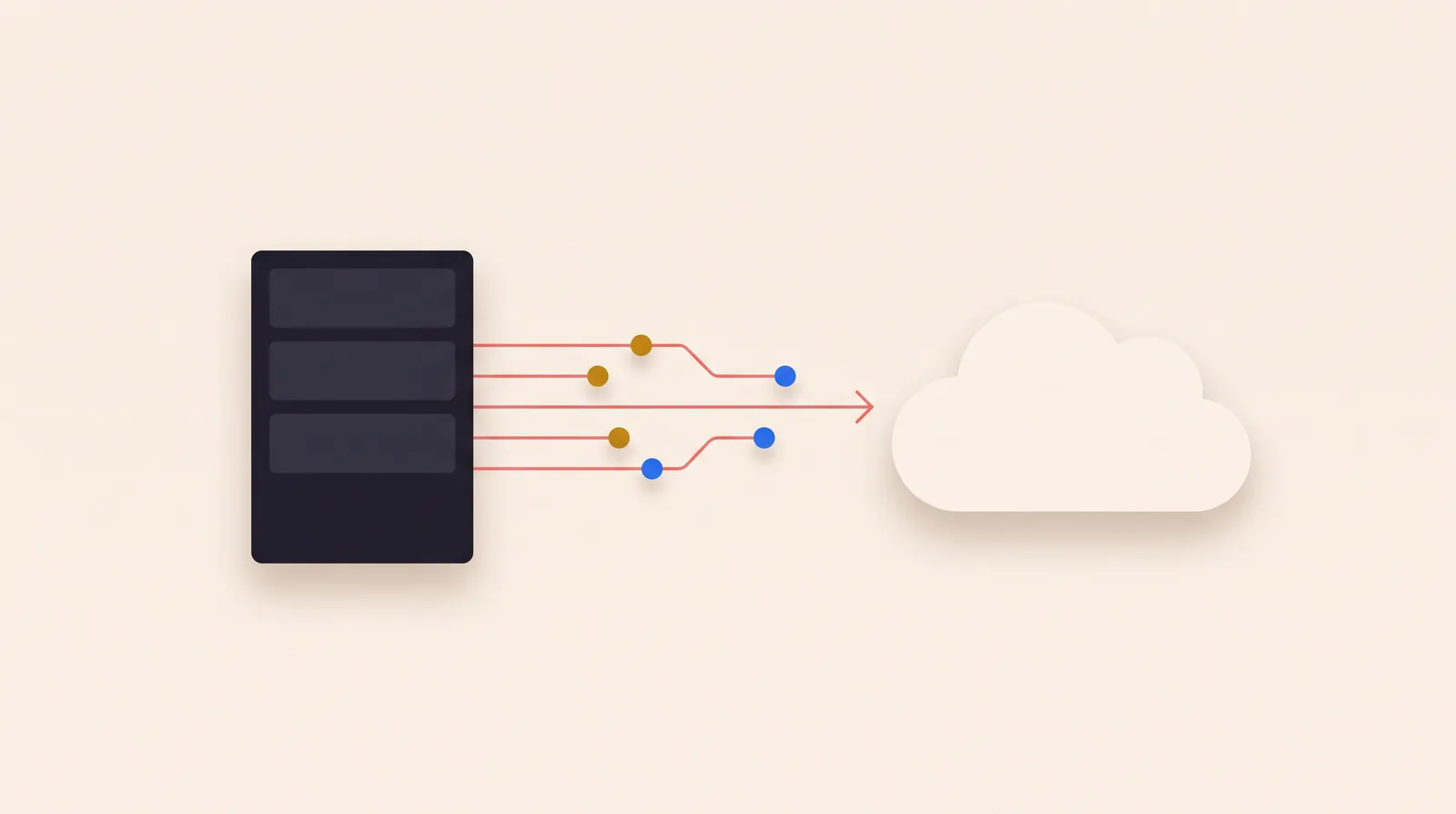
A migration runs through four phases: inventory, cleanup, migration and validation. Each phase has its own purpose, and skipping a phase is usually where things go wrong.
1. Inventory. You map out which sites, libraries, lists and permissions exist, and who still uses them. For many SMEs, a large part of the content turns out not to have been touched in years.
2. Cleanup. You archive or delete outdated sites and streamline duplicate folder structures. This is the moment to improve your information architecture instead of simply moving the old structure.
3. Migration. Using migration tools (the SharePoint Migration Tool or ShareGate, depending on volume and complexity) you move content, metadata and permissions. Custom web parts or workflows often need a rebuild in the modern SharePoint Framework rather than a literal transfer.
4. Validation. You test search results, permissions, links and integrations with other Microsoft 365 applications before switching off the old environment.
A concrete example: an SME with 15 employees and three departmental sites had mainly document libraries and one custom approval workflow. The workflow turned out to be the biggest time investment, not the documents themselves: it had to be rebuilt with Power Automate, because the old workflow engine no longer exists in SharePoint Online. Read more about this under Power Platform & Microsoft 365.
Stay put or migrate? The options side by side
| Criterion | SharePoint 2019 on-premises | SharePoint Online |
|---|---|---|
| Maintenance | Own servers, patches, backups | Managed by Microsoft |
| Remote access | Often requires VPN | Available anywhere by default |
| Security updates | Support phasing out | Continuously updated |
| Integration with Teams/Outlook | Limited or custom-built | Built in |
| Cost | Server hardware + licences | Subscription, no own infrastructure |
| Extensibility | Classic add-ins | Modern SharePoint Framework |
For most SMEs, the combination of less management overhead and better integration with Teams and Outlook outweighs the familiarity of the existing environment.
Common mistakes in a SharePoint migration
The most common mistake is transferring content 1-to-1 without cleanup, which carries the same structural problems into the new environment. Other mistakes I frequently encounter:
- Not reviewing permissions. Old, overly broad rights get migrated and remain unnoticed.
- Underestimating customisations. Classic web parts or InfoPath forms do not simply work in SharePoint Online and need a rebuild.
- No test migration. Migrating the entire environment straight away without first testing on a small site leads to surprises you would rather have found beforehand.
- Informing users too late. If employees only find out on the day itself that links and shortcuts are changing, adoption is delayed.
Timeline and cost
The timeline depends mainly on data volume and the amount of customisation, not on the number of users. An SME without custom workflows sometimes migrates within a few weeks; once classic web parts, workflows or external integrations are involved, this can extend to several months, phased by department.
What it costs exactly depends on your current environment and the approach you want. I work with project pricing and/or day rates, and you get a clear quote after a free call in which we go through your situation. Also see my SharePoint migration service for more detail on the approach, or the full range of services.
Frequently asked questions
Will I lose data during a migration to SharePoint Online?
Not with a correctly executed migration: content, metadata and version history are transferred, and you always test this first on a smaller set before migrating the full environment.
Can I use SharePoint 2019 and SharePoint Online side by side temporarily?
Yes, and a phased migration per site or department is even recommended, so users switch over step by step instead of all at once.
Do all our custom web parts need to be rebuilt?
Classic web parts and workflows generally do not work as-is in SharePoint Online. Depending on complexity they are rebuilt with the modern SharePoint Framework or replaced with built-in Microsoft 365 functionality.
Do you have a specific question about your environment? See the FAQ page for more answers.
Next step
Not sure whether your SharePoint 2019 environment is ready for migration, or want to know up front how much work it is? Get in touch for a no-obligation call. I will review your current environment with you and give you a realistic picture of approach, timeline and cost.